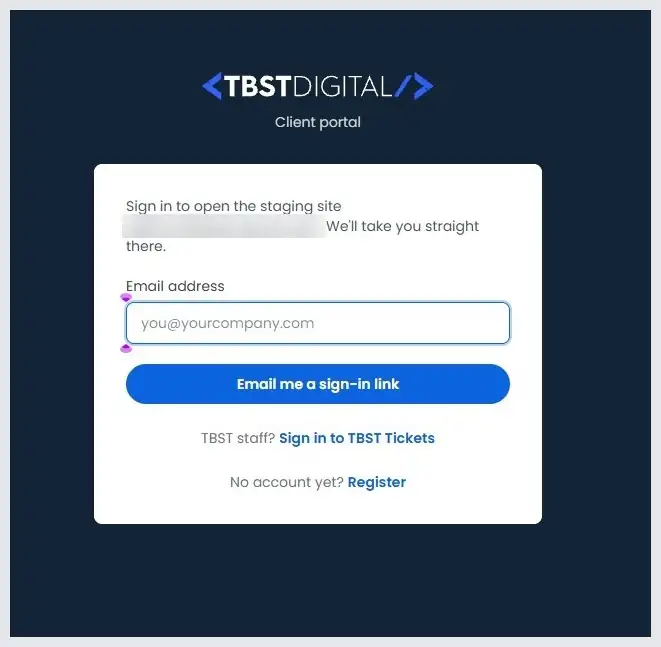
While we build your website, you review it on a staging site. That's a private copy of the site that isn't open to the public.
To keep it private, the staging site sits behind a sign-in page. You don't need a password to get through it. You need your email address and a magic link.
This guide shows what you'll see at each step, and how long each part lasts.
What a magic link is
A magic link is a sign-in link sent to your email address. Opening it proves you have access to that inbox, so there is no password to create, remember or share.
Only email addresses we've approved for your project can receive one.
Step 1: Open your staging site address
Go to the staging site address we gave you. Instead of the site, you'll see a TBST Digital sign-in page.
The page names the staging site you're signing in to, so you can check you're in the right place.
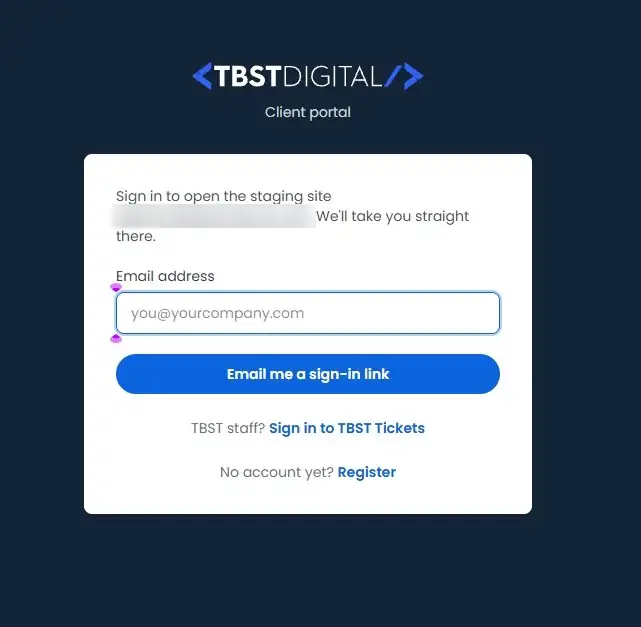
Step 2: Enter your email address
Type the email address we have on file for you, then select Email me a sign-in link.
The page confirms the request: "If that address has an approved account, we have emailed it a sign-in link."
The message reads the same whether or not the address is approved. That's deliberate: it stops anyone using the page to find out which addresses have access.
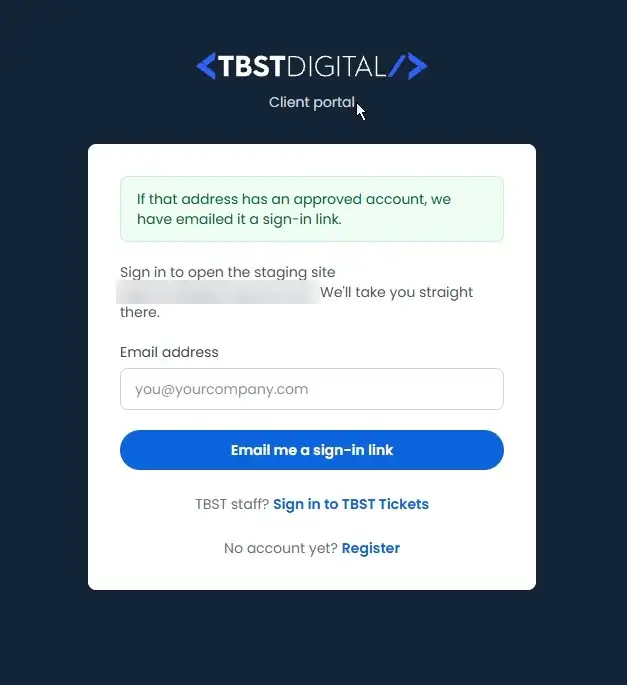
If no email arrives within a few minutes, check your spam or junk folder. If it still isn't there, the address may not be approved yet. Let us know and we'll add it.
Step 3: Open the link in your email
The link in the email is active for 5 days. Select Open [your site] to go straight to the staging site.
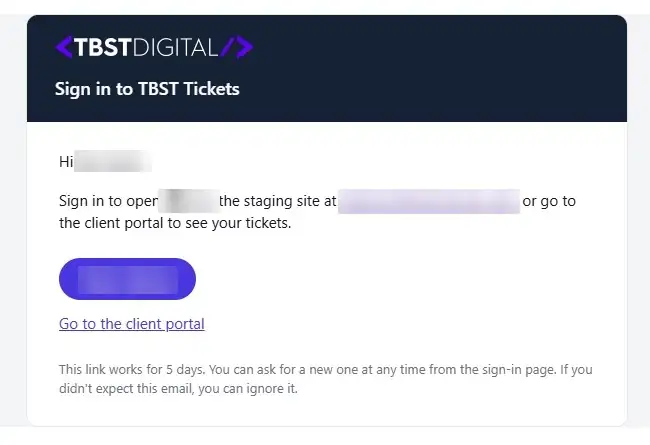
After 5 days the link stops working. Request a new one from the sign-in page. You can ask for a new link at any time.
If a sign-in email arrives that you weren't expecting, you can ignore it. Nobody gets in without opening the link from your inbox.
Step 4: Stay signed in for up to 30 days
Once you open the link, the device and browser you used remember you for up to 30 days. Go back to the staging site address during that time and it opens without the sign-in page.
A few things to know:
- Each device signs in separately. If you review on your laptop and your phone, open a link on each.
- After 30 days, you'll see the sign-in page again. Enter your email and you'll get a fresh link.
- Sharing the staging site with a colleague? Ask us to approve their email address rather than forwarding your link. That way they get their own access.
In short
| Step | What you do | How long it lasts |
|---|---|---|
| 1 | Open the staging site address | — |
| 2 | Enter your email and request a link | — |
| 3 | Open the link in your email | The link is active for 5 days |
| 4 | Review the site | Your device stays signed in for up to 30 days |
If anything doesn't work the way this guide describes, get in touch and we'll sort it out.
